Open WebUI extensions: memory, tools, code execution, vision, and SSO
Contents
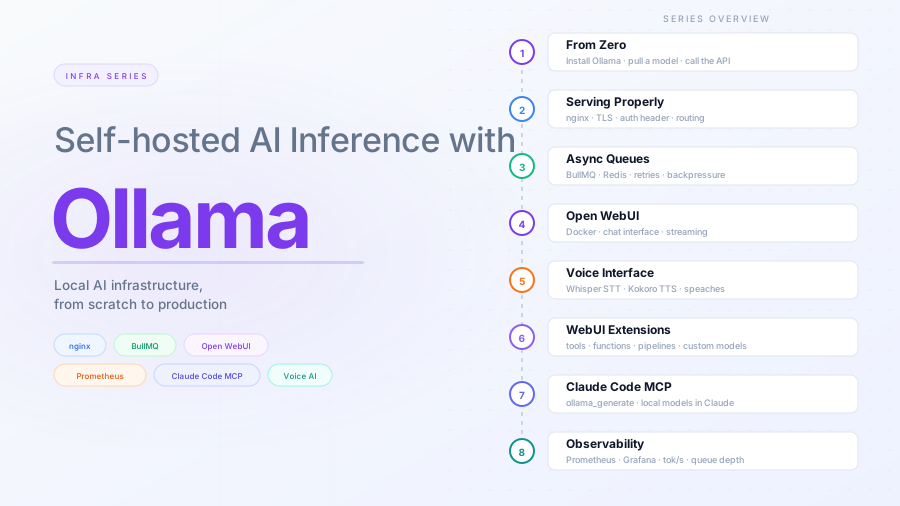
This is part 6 of the Ollama infra series. Parts 1–5 built the infrastructure: Ollama behind nginx, an async queue layer, Open WebUI, and a voice interface. This post extends the Open WebUI side with features that do not require new services — just configuration, model changes, and occasional short Python functions.
Memory
Open WebUI can extract facts from your conversations and inject them into future sessions. The model knows your name, preferences, and recurring topics without you having to repeat them.
Enabling it
In the admin panel: Admin Panel → Settings → General → Memory, toggle it on.
Each user can view and manage their own memories under Settings → Personalization → Memory. Admins can enable or disable memory globally.
How it works
After each conversation turn, Open WebUI runs a background extraction pass. It pulls out facts worth keeping — your name, stated preferences, domain context — and stores them per user in the local database. On the next conversation they are prepended to the system prompt automatically. You never see this injection; the model just behaves as if it already knows you.
Auditing and pruning
Automatic extraction is imperfect. It will occasionally store things you do not want persisted. Go to Settings → Personalization → Memory → Manage to review, edit, or delete individual entries. There is also a clear-all option.
The quality of extraction depends on the model. A 7B model will miss things that a larger one would catch. If you are running llama3.2, extraction will be adequate. If you notice important context getting missed, consider switching to a larger model.
Limitations
Memory is extracted asynchronously, so it does not affect the current conversation — only future ones. Memories are stored in the Open WebUI SQLite or Postgres database (depending on your setup). If you wipe the container volume without a backup, they are gone.
Tools
Tools are Python functions the model can call during a conversation. The model decides when to use them — you do not invoke them explicitly. This is function calling, and it turns a chat model into something that can query APIs, read files, or run calculations.
Prerequisites
Function calling requires a model that supports it. Good options:
| Model | Notes |
|---|---|
llama3.1:8b |
Solid tool use, fits in 8 GB VRAM |
qwen2.5:7b |
Strong tool calling, often outperforms larger models on structured tasks |
mistral:7b |
Reliable, wide community support |
llama3.2:3b |
Smallest viable option — adequate for simple tools |
To verify a pulled model supports tools:
ollama show llama3.2 --modelfile | grep -i tool
If the modelfile includes tool-related parameters, you are good.
Installing community tools
The Open WebUI community publishes tools at openwebui.com/tools. They are Python files you paste directly into the interface — no package management needed.
To install: Workspace → Tools → New Tool. Paste the Python code and save. The tool becomes available to any model that supports function calling.
A few useful community tools to start with:
- Current time/date — surprisingly necessary; models have no clock
- Wikipedia lookup — structured factual lookups without hallucination risk
Writing a tool
A tool is a Python class with a docstring and typed methods. The docstring is what the model reads to decide when to call it — write it precisely.
class Tools:
    def get_current_time(self) -> str:
        """
        Get the current date and time.
        Use this when the user asks about the time or date.
        """
        from datetime import datetime
        return datetime.now().strftime("%Y-%m-%d %H:%M:%S")

    def celsius_to_fahrenheit(self, celsius: float) -> str:
        """
        Convert a temperature from Celsius to Fahrenheit.
        :param celsius: Temperature in Celsius.
        """
        f = (celsius * 9 / 5) + 32
        return f"{celsius}°C = {f:.1f}°F"
The return value is passed back to the model as a string. If your function raises an exception, Open WebUI catches it and tells the model the call failed.
Enabling tools per model
After saving a tool, attach it to a model: Workspace → Models → [your model] → Tools, check the tools you want available. A model with no tools attached will not attempt function calling even if it supports it.
Code execution
Open WebUI can execute Python code generated by the model in a sandboxed environment and show the output inline. Charts render as images; print statements appear as text. This turns the chat interface into something close to a notebook.
Enabling it
Admin Panel → Settings → Code Execution — toggle on. The sandbox is isolated: no access to the host filesystem, no outbound network connections.
Using it
Once enabled, prompt the model to write and run code:
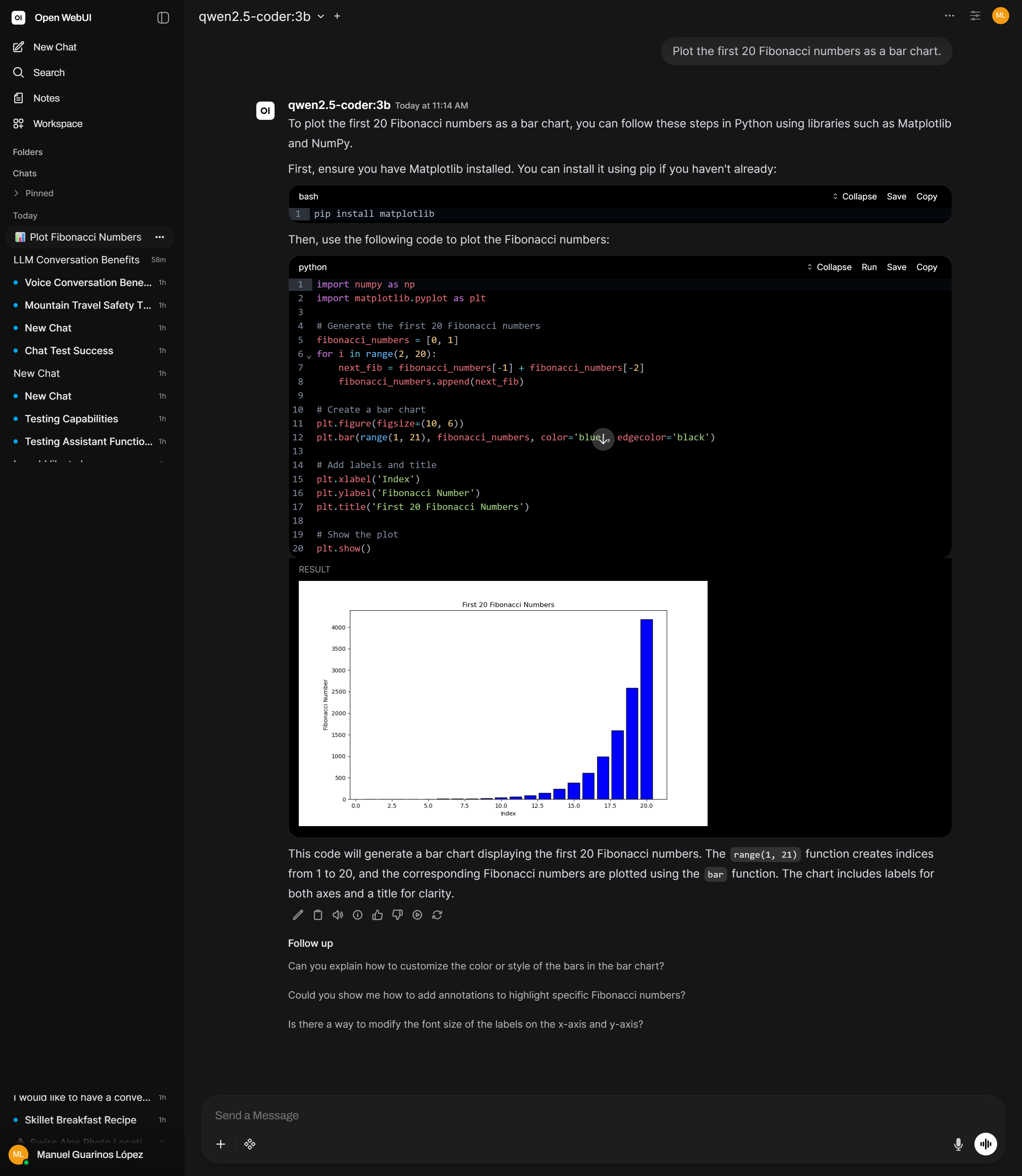
Plot the first 20 Fibonacci numbers as a bar chart.
The model generates the code, Open WebUI executes it, and the result appears inline. You can ask it to modify the code in follow-up messages — each edit reruns in the same session context.
Available libraries
The sandbox includes standard scientific Python: numpy, pandas, matplotlib, scipy, and the standard library. Code that opens sockets, writes to disk outside the sandbox, or imports system-level packages will fail. Check Admin Panel → Settings → Code Execution for options to expand the available environment on your version.
Vision and OCR
Multimodal models can describe images, read text from screenshots, interpret charts, and answer questions about visual content.
Pull a vision model
ollama pull llama3.2-vision
Alternatives:
llava:13b— older, smaller VRAM requirement, lower qualityllama3.2-vision:90b— significantly better quality, requires ~55 GB VRAM
Using vision in Open WebUI
Attach an image using the clip icon in the message input. The conversation stays the same; the model receives both the text and the image.
For reading text from a screenshot or document:
Extract all text from this image exactly as it appears.
For noisy images or handwriting:
Extract as much text as you can. Mark any part you are uncertain about with [?].
For structured extraction (invoices, forms, tables):
This is a scanned invoice. Extract all fields as JSON: vendor, date, line items, total.
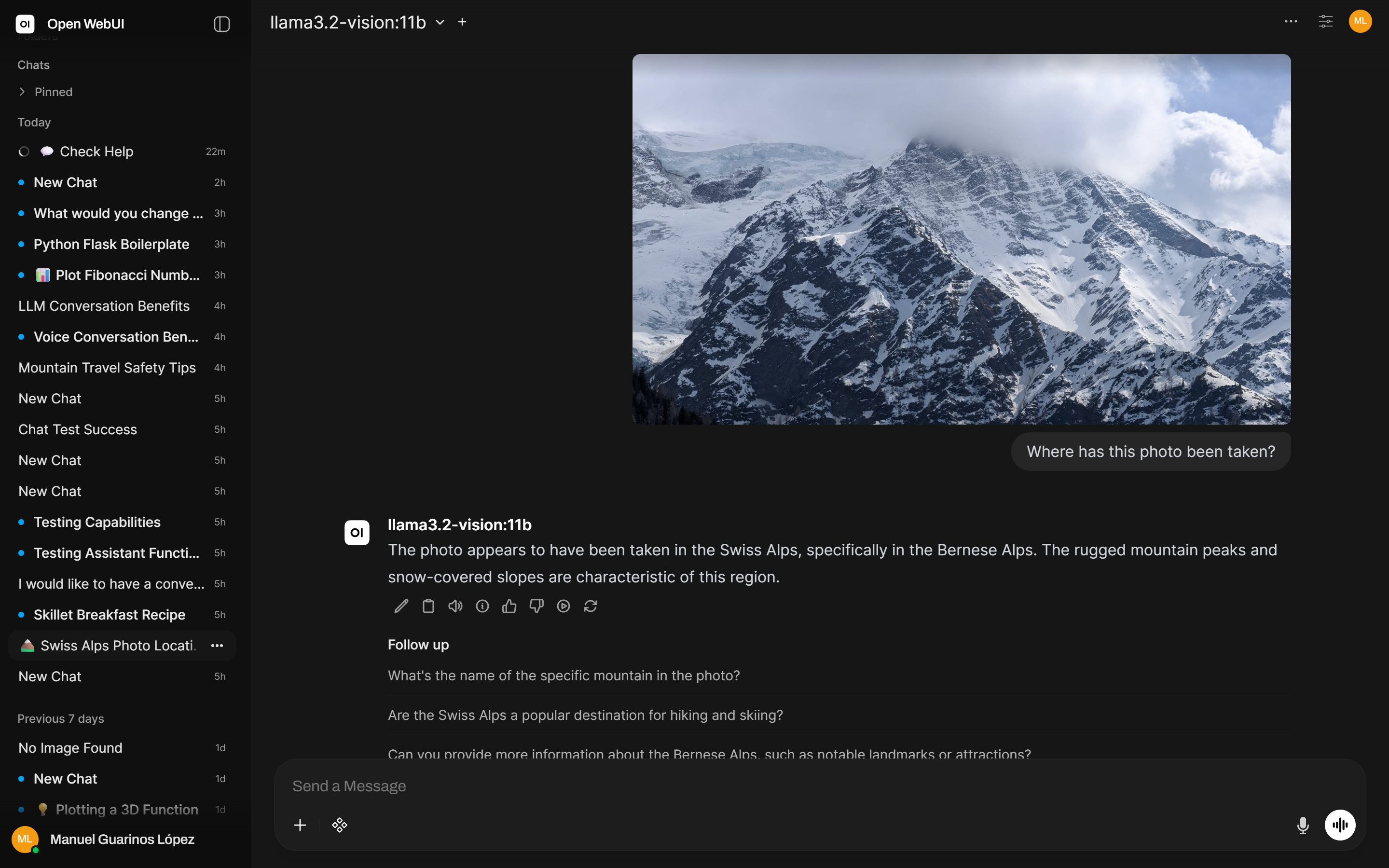
Open WebUI routes vision requests to Ollama directly and handles the multimodal encoding automatically when a vision-capable model is selected.
SSO
Open WebUI supports OAuth2 and OIDC, so users can log in with Google, GitHub, Microsoft, or any OIDC-compliant identity provider (Keycloak, Authentik, etc.). Configuration is done via environment variables passed to the Docker container — set the provider’s discovery URL, client ID, and secret, then restart. The Open WebUI SSO documentation covers every provider with the exact variable names.